Campaign Manager - Campaigns
Omni Channel Element
Omni Channel Elements allow information to be passed from the Campaign to other output via configured External Agents e.g. send a tweet, send an SMS or generate a Facebook post etc. The Omni Channel Elements available in Campaign Designer will depend on which External Agents have been Configured and which ones, the current user has permissions to use. If multiple External Agents have been configured against a specific Channel Type, when adding an Element to a Campaign, only a single option for that Channel Type will be displayed. For example, multiple Twitter External Agents have been configured, but when adding an Element, there will be only one Twitter option available. Once the Twitter Element has been added to the Campaign, it can be edited to select the individual Twitter External Agent required. Add an Omni Channel Element to the Campaign.
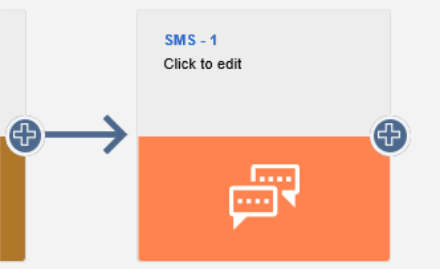
The Element icon will be dependent on the Channel Type that it is has been configured against. Click the Omni Channel Element to edit it:
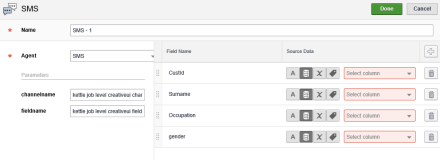
NameEdit the name of the Element to make it unique if required. AgentWhere multiple External Agents have been configured against the selected Channel Type, click the down arrow and select the required External Agent from the drop down list. The ParametersParameters are set globally and are created in the Pentaho Kettle File Settings. Any Parameter with They are also editable via the External Agent Settings. Changes made to the Parameters via the External Agent Settings will be the default for the External Agent going forward, if changes are made via the Campaign Element UI, they will only be applicable for that specific Campaign. Parameters that are added without the creativeui naming convention are editable via the External Agent Administrator Settings, but will not display in the Campaign Element. Rename the Parameter values for the tactic, if required, by clicking in the relevant field and entering the required value. Field MappingsMap the fields required by the associated External Agent file. The following options are available:
Once all the required information has been set up, click the Done button to save and exit the edit screen.
|
 button can be used to refresh this list where External Agents have been added or removed since the edit screen was loaded.
 - Free text entry of a value. Type the required value in the field.
 - Map the field to a column in the database. Click on the down arrow and navigate to the required database column.
 - Map the field to a variable. Click the down arrow and select the required variable from the drop down list.
 - Map the field to a Campaign attribute. Click the down arrow and select the required attribute from the drop down list.

|
© Alterian. All Rights Reserved. | Privacy Policy | Legal Notice |   
|